The Final Design
I designed, developed and tested the template over the course of a year with the e-learning team and regularly met with upper management to ensure the project was meeting team and business needs.
Simple UI
The final design focused on a clean and simple interface with minimal branding to allow the content to shine. High contrast navigation buttons are consistently anchored to the bottom of the window and instructions and feedback are presented front and center to the student.
ADA Compliance
To ensure compliance with WCAG AA standards, I configured the design and content to work smoothly with screen reader software and ensured that images and video could be paired with alt text and captioning. During testing, our team used screen reading software and navigated through test presentations with only keyboard controls to ensure students with disabilities had the best experience possible. We also teamed up with a student from Butler University that relied on screen reading software for her studies. She piloted test presentations and provided valuable feedback that was incorporated into the final design.
Efficient Developement
The template was developed so that e-learning team members could rapidly load different slide layouts into a presentation and begin customizing content efficiently. Time consuming processes like configuring the reading order of a slide for screen readers and setting up variables and triggers for interactivity were baked into the design cutting development time by 20-30%.
Scalable and Evolving
During my time managing the project, the template continued to evolve and I regularly updated the design based on feedback from team members, instructional designers, and university program administrators. The template continues to be used and updated today.
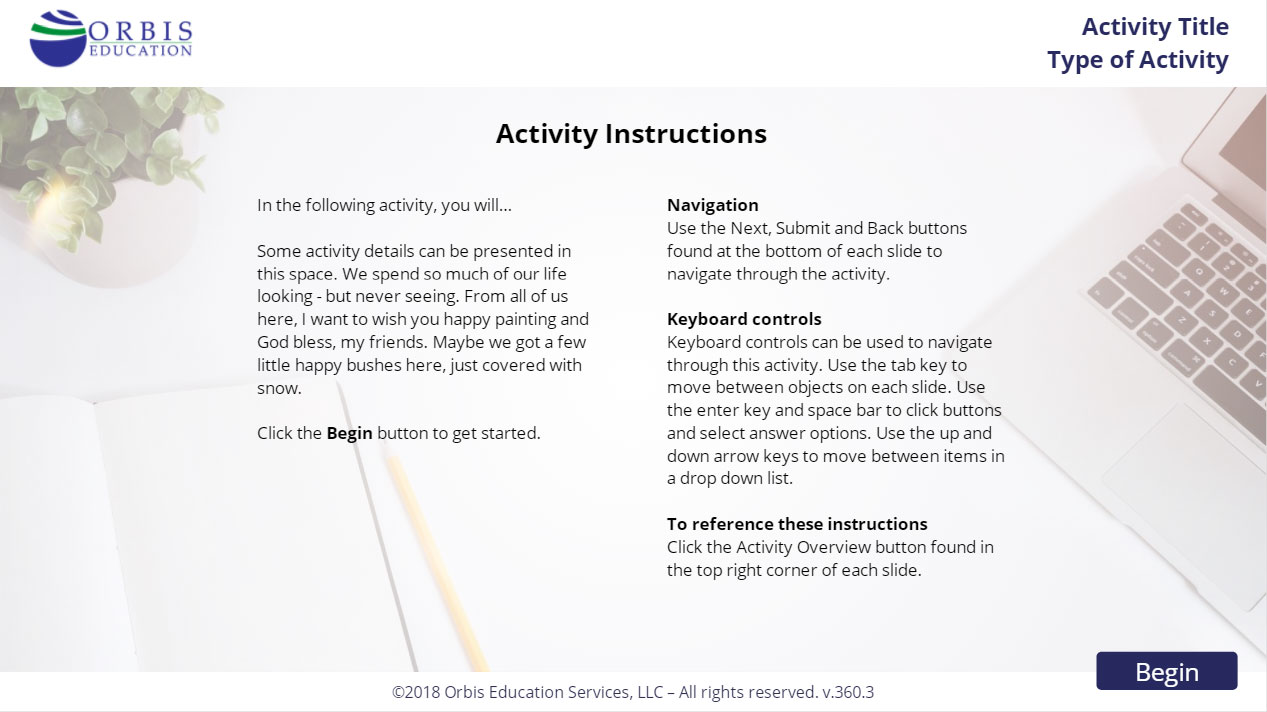
Introduction slide: Includes an area for an activity overview and instructions for users that may need to navigate with a keyboard alone
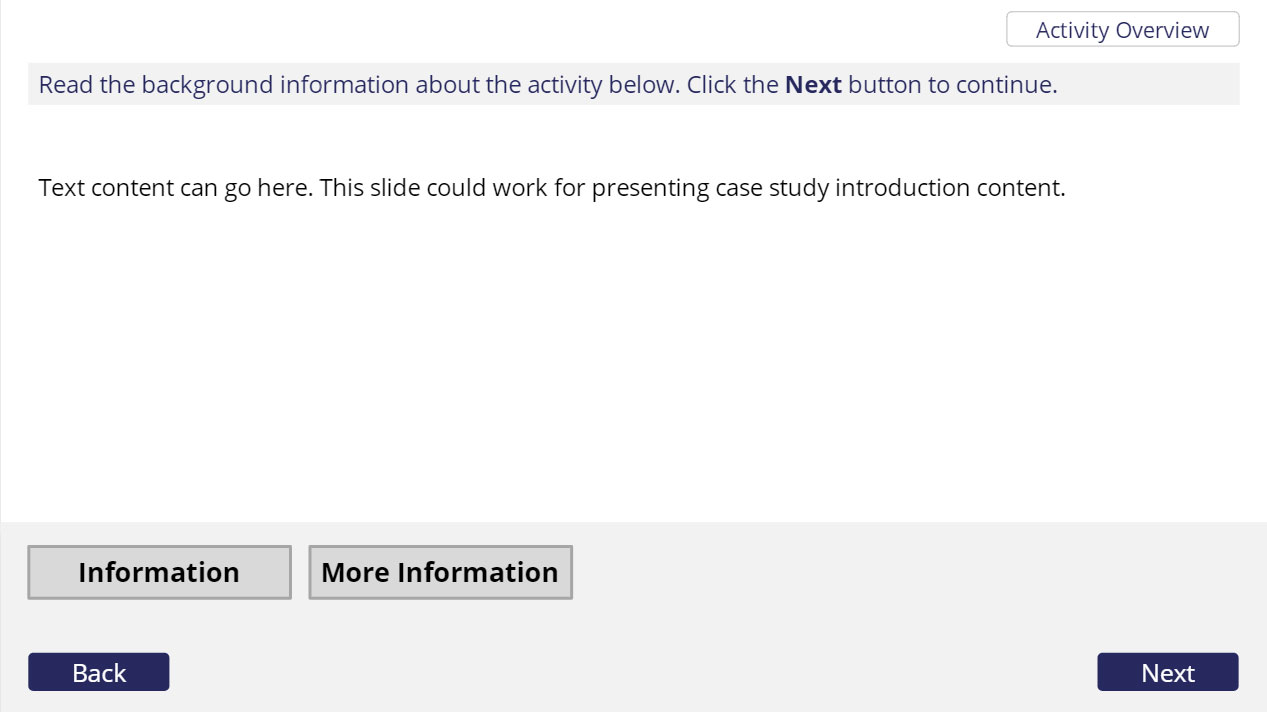
Case study slide: A space to present case study information - two information buttons provide more space to present content
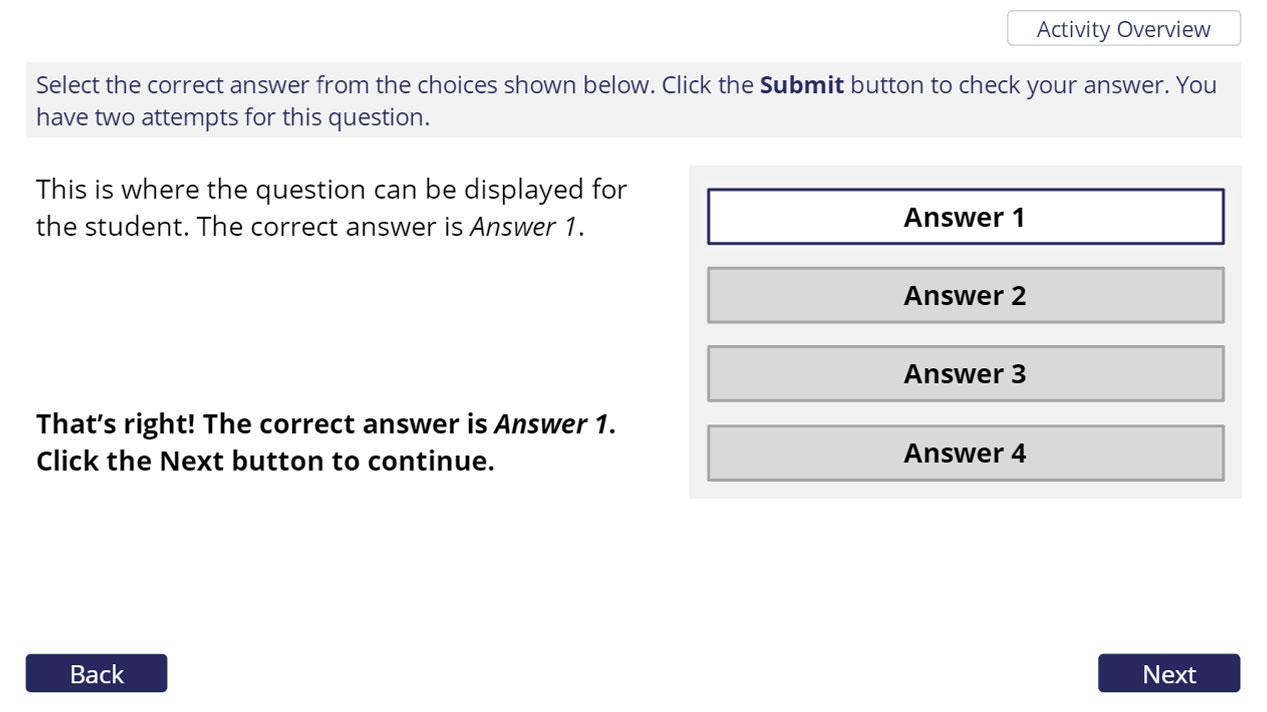
Multiple choice questions: Several multiple choice and multiple select question options are available. Custom slide layers provide feedback for correct and incorrect answers.
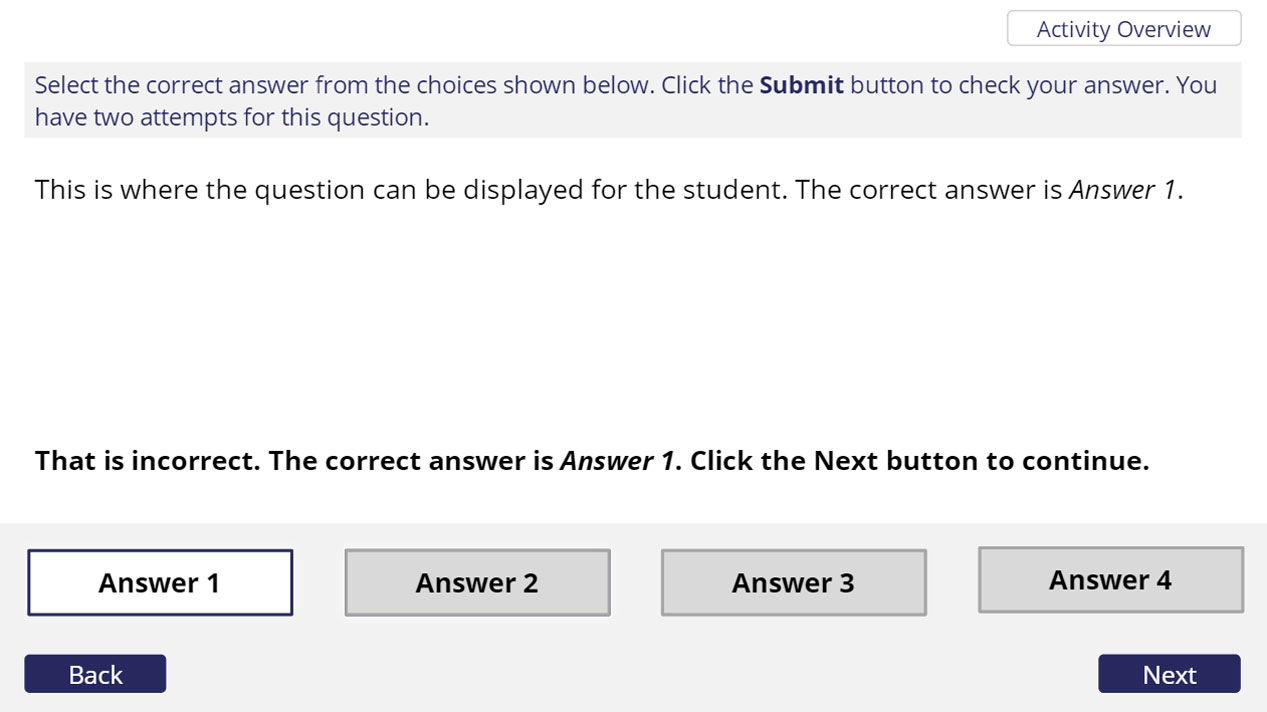
Multiple choice questions: An alternate layout
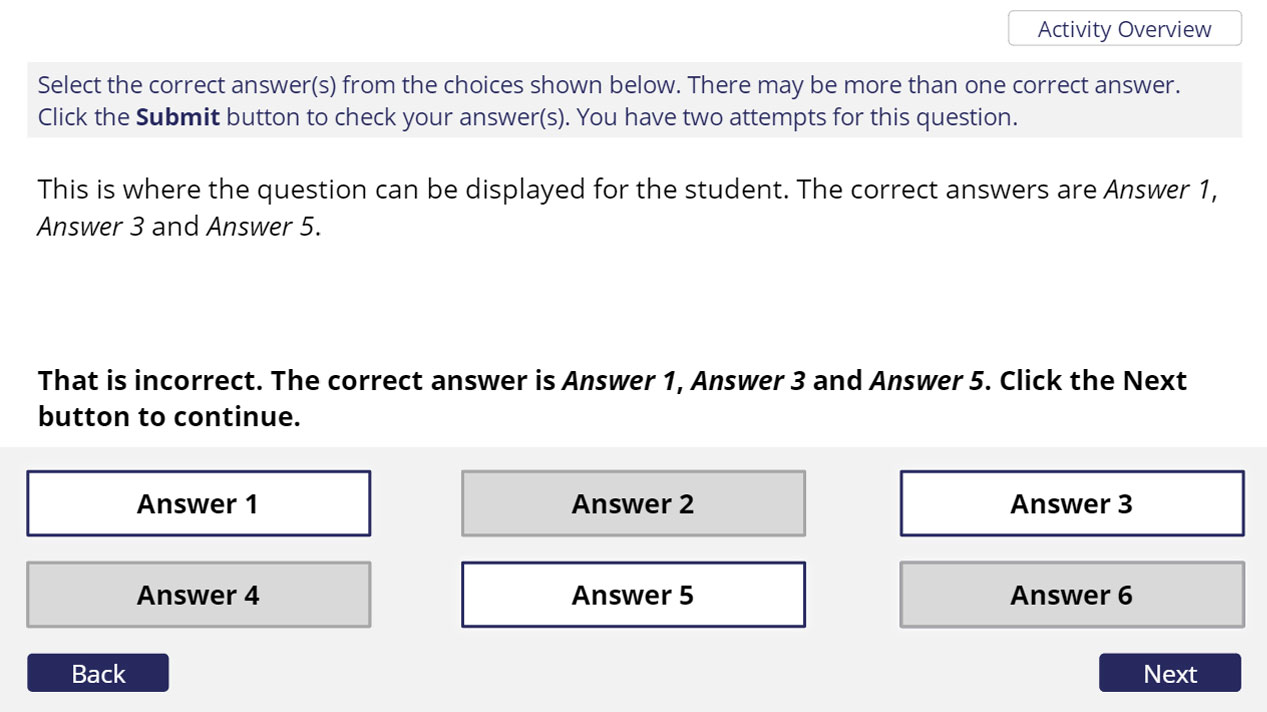
Multiple select layout
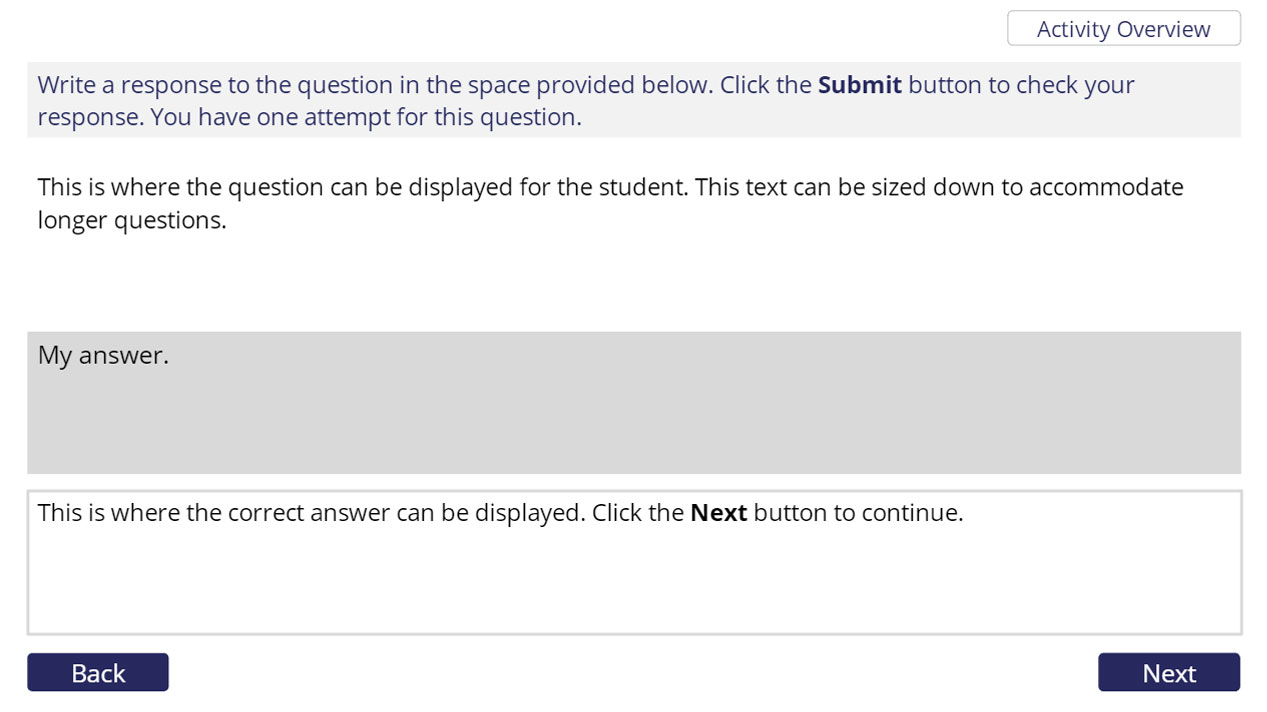
Free response question: A text entry area and space for providing answer feedback
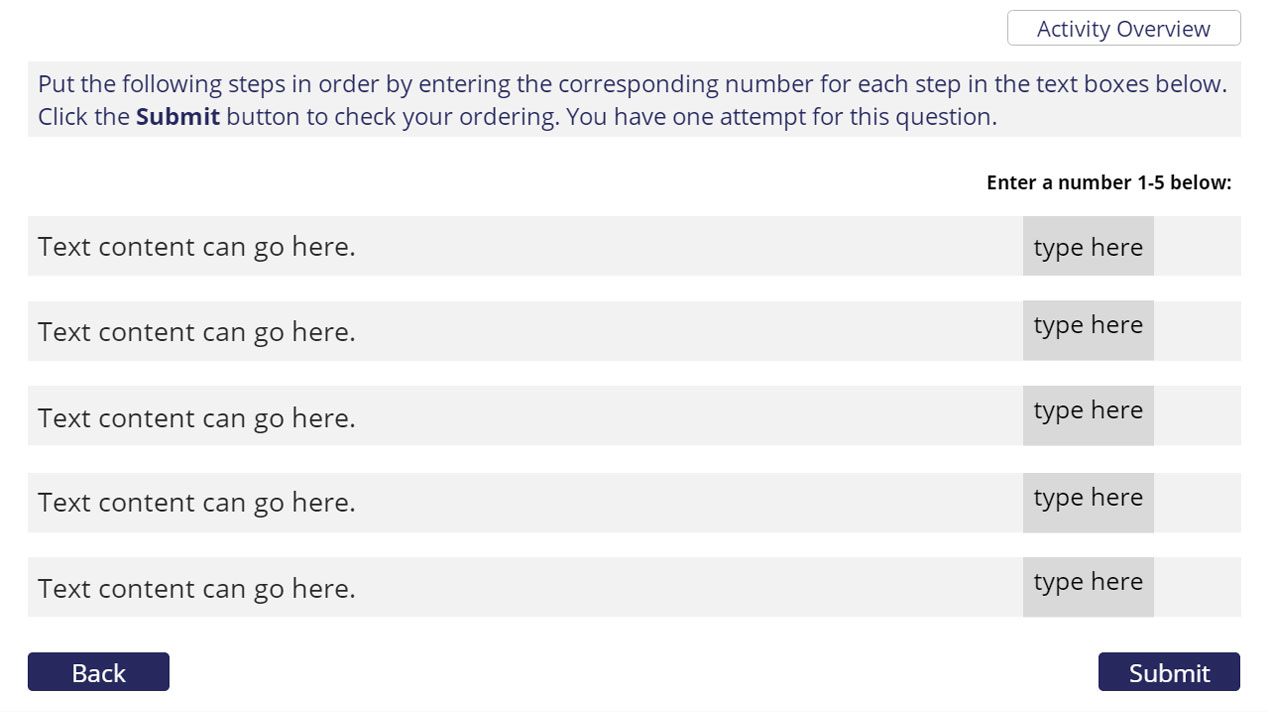
Ordering question: This layout is also accessible by keyboard input
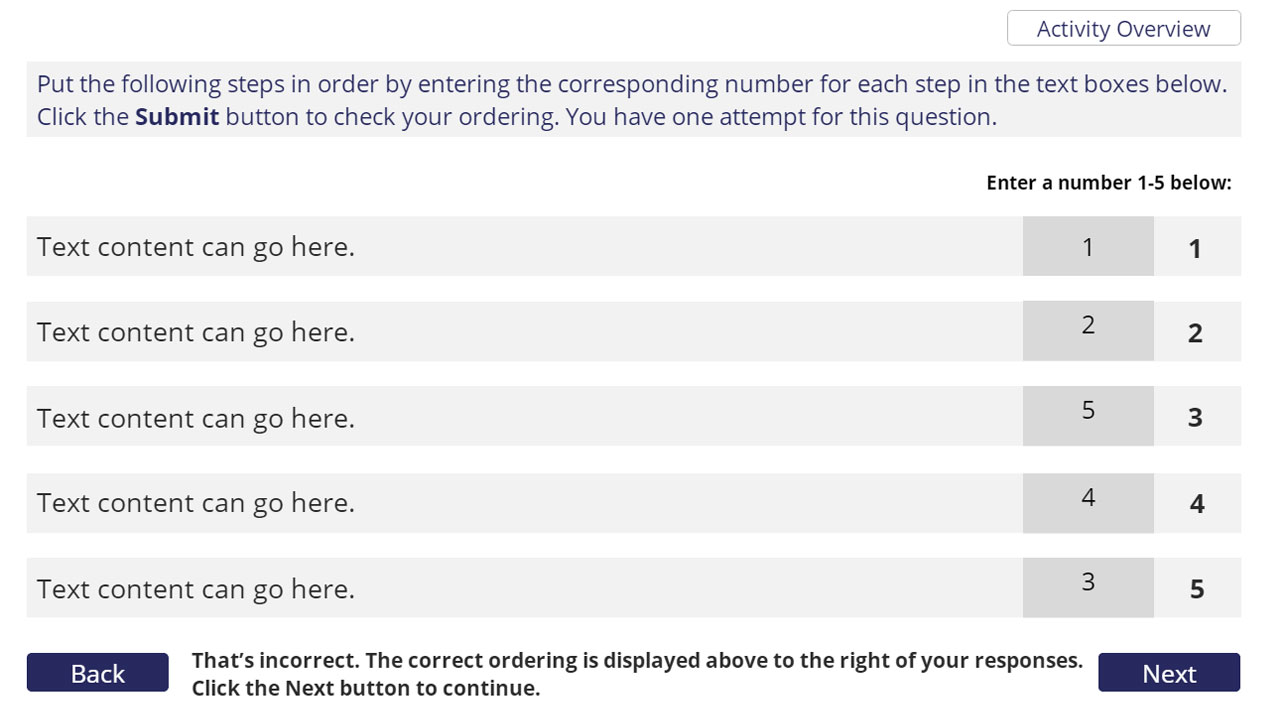
Ordering question: Correct and incorrect feedback is given after entering responses and selecting the submit button
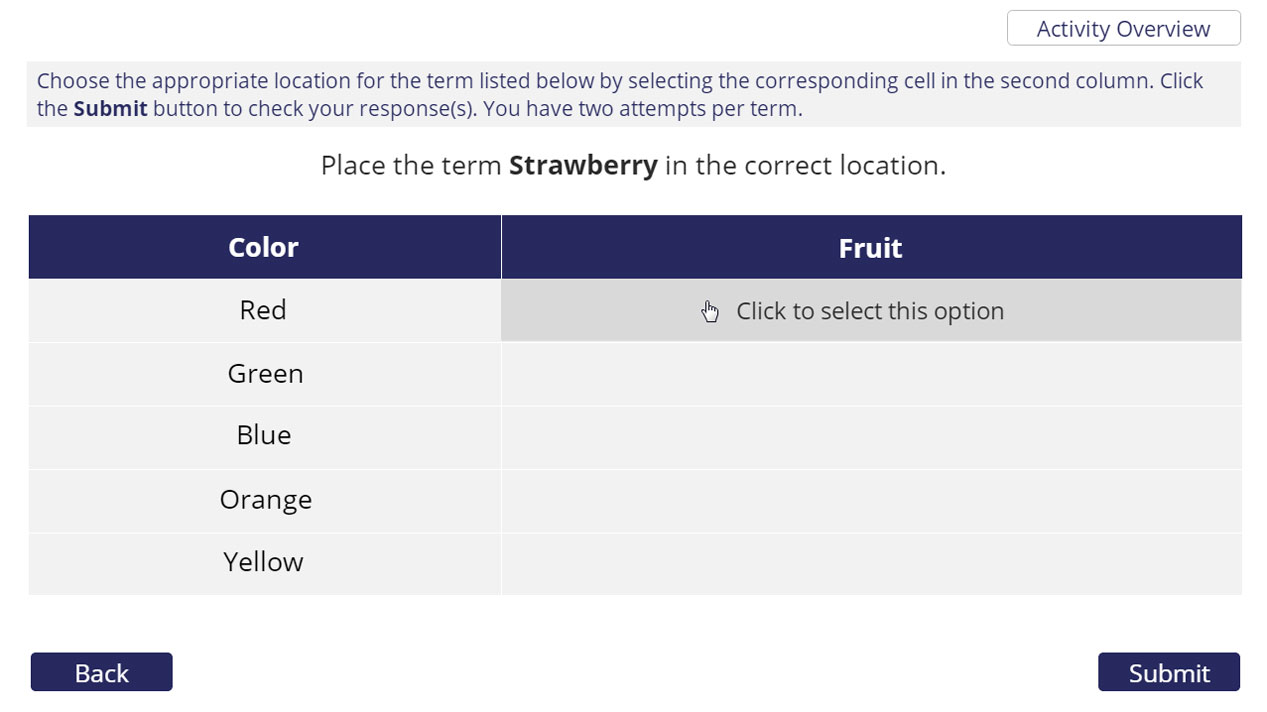
Table slide: A matching table interaction that can be adapted to several columns. The user is presented with one column at a time to reduce confusion.
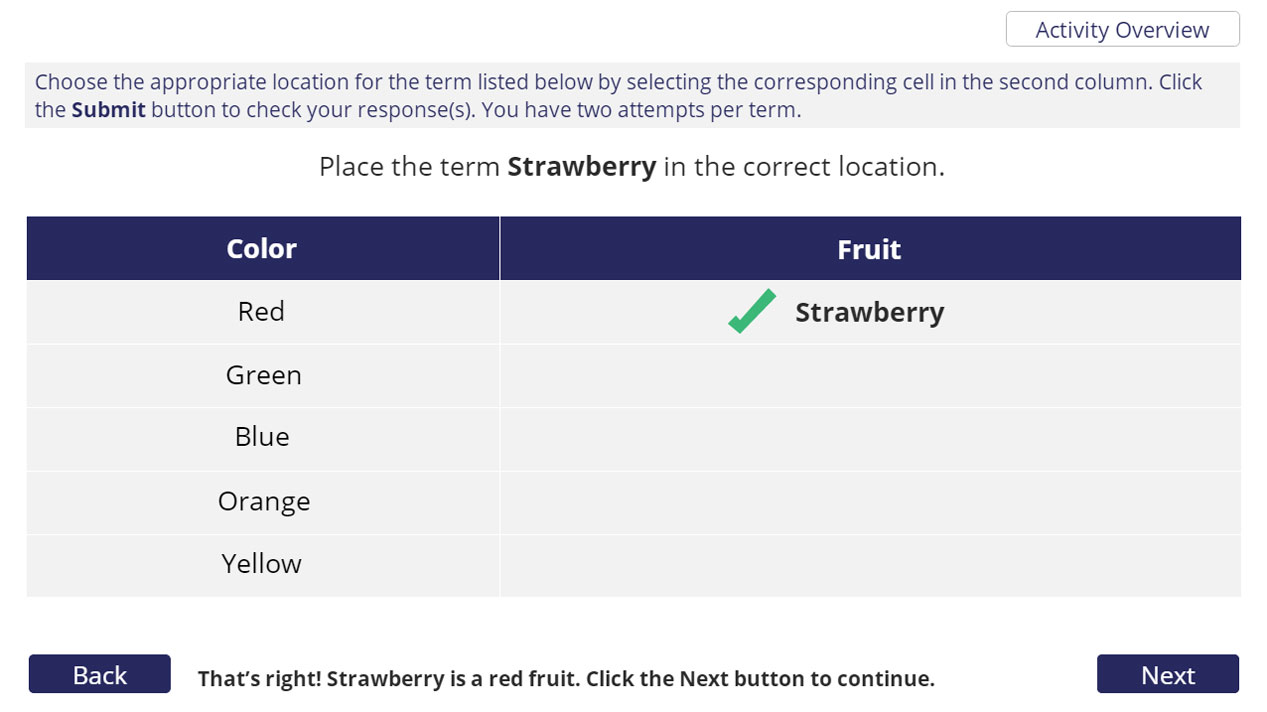
Table slide: An example showing a correct answer selected in column one
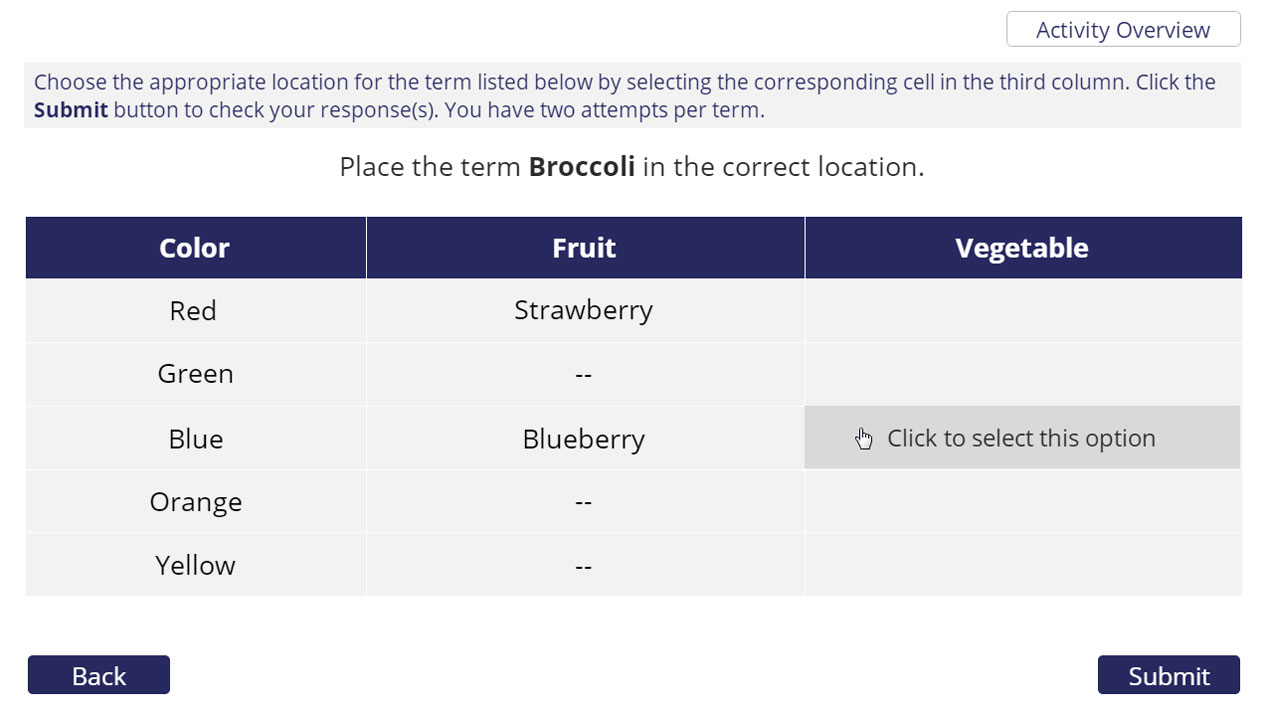
Table slide: The second column of the table
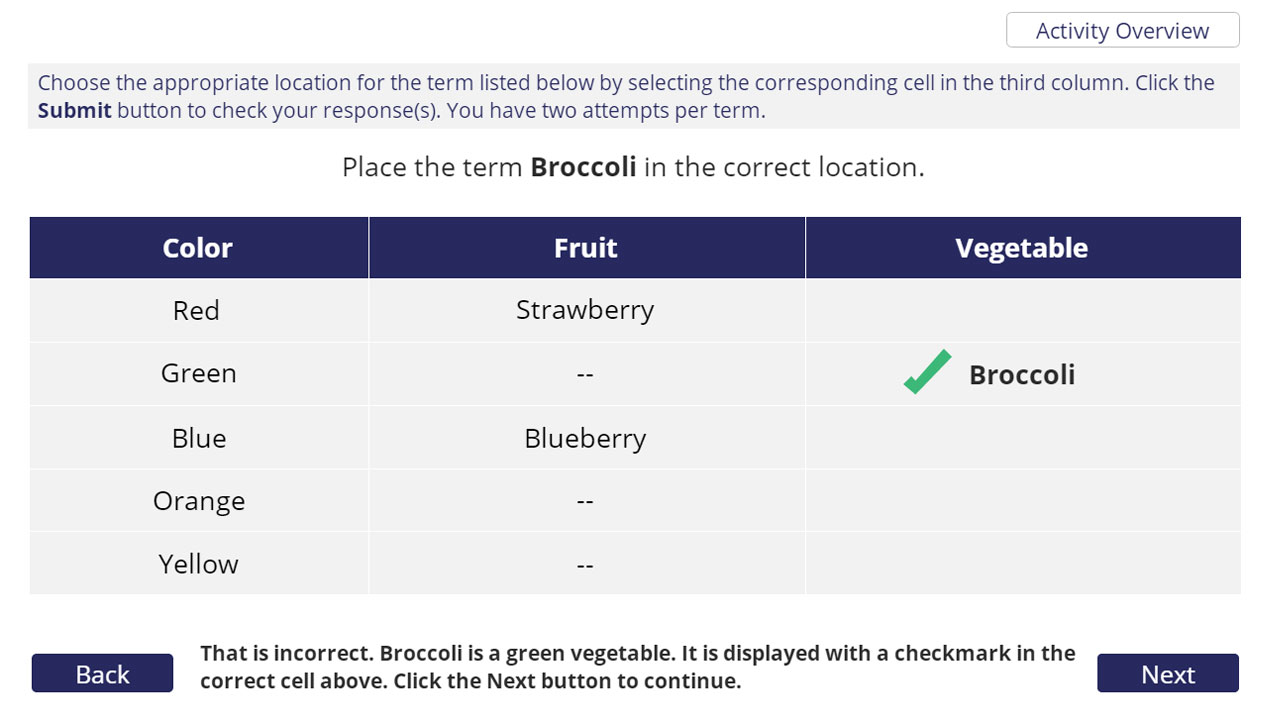
Table slide: A second column correct answer
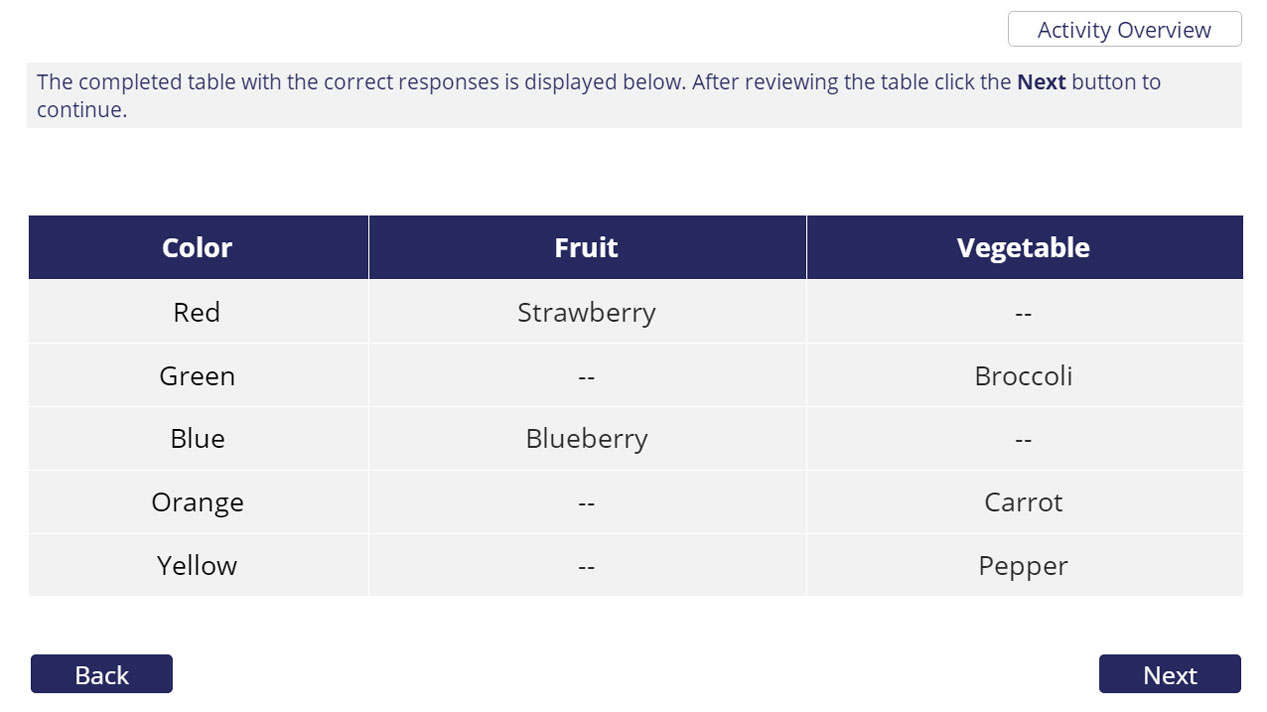
Table slide: All correct answers displayed at the end of the interaction
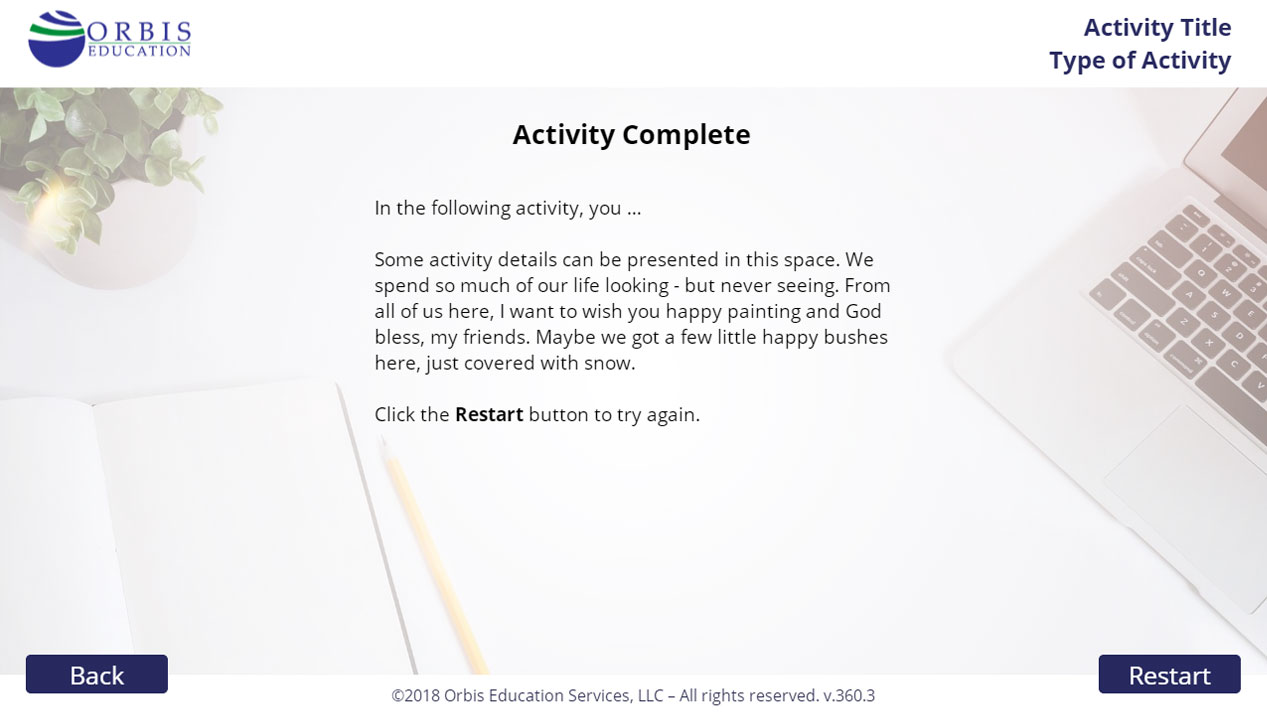
End slide: Includes an area for an activity recap and a restart button

